> ## Documentation Index
> Fetch the complete documentation index at: https://docs.pubrio.com/llms.txt
> Use this file to discover all available pages before exploring further.
# Introduction to Monitors
> Automated signal detection with enrichment — delivered to your webhook or email in real-time.
## Why Monitors?
Traditional APIs require you to build and maintain your own signal pipeline — polling endpoints, tracking state, handling pagination, and stitching together multiple calls for enrichment. Monitors replace all of that with a single configuration.
Signals are detected and delivered as they appear — no polling loops or cron jobs required.
Combine signal filters with global company filters in one query. "Companies with 500+ employees hiring for AI roles" — one config, not multiple API calls.
Company profiles and people contacts are enriched automatically with each trigger. No separate API calls needed.
Retry logic, failure handling, deduplication, and delivery tracking — all managed for you.
 ***
## How Monitors Work
***
## How Monitors Work
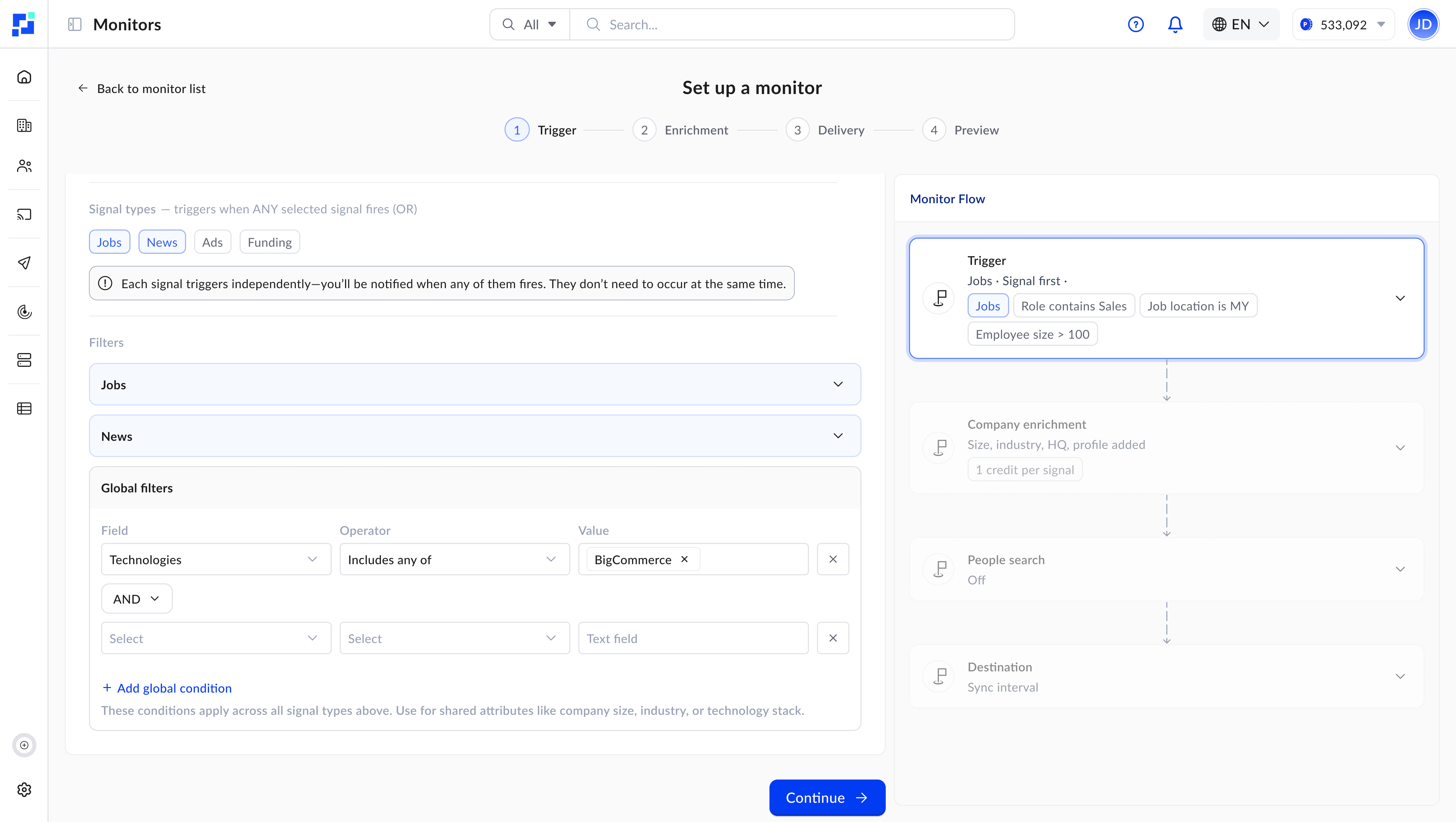
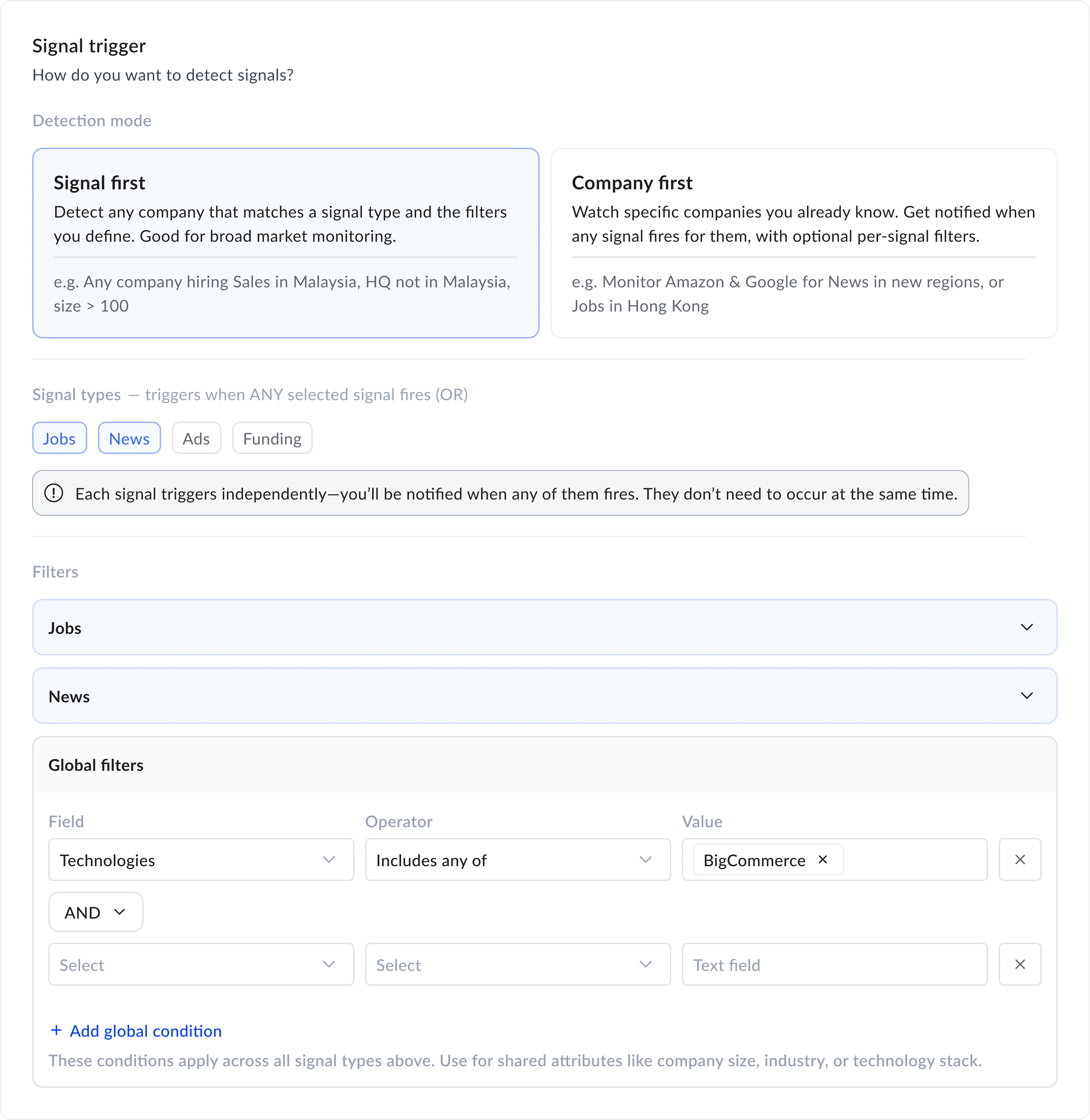
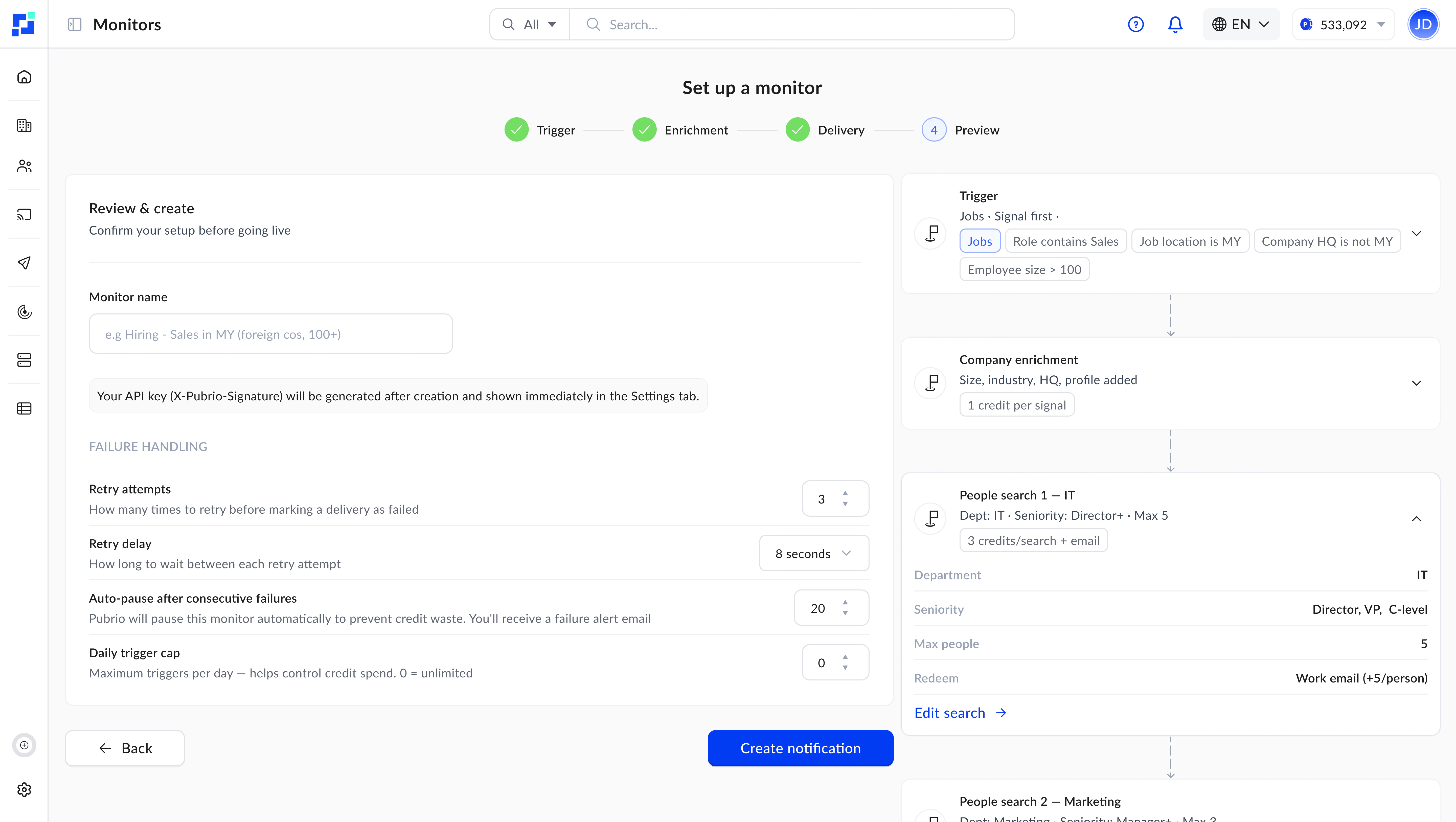 Choose which signals to track (jobs, news, advertisements) and set signal-level filters. Optionally layer on **global company filters** to narrow results — for example, only surface signals from companies with 500+ employees in the US.
With `frequency_minute` set to `0` (the default), your monitor runs in real-time — detecting and delivering signals as they appear.
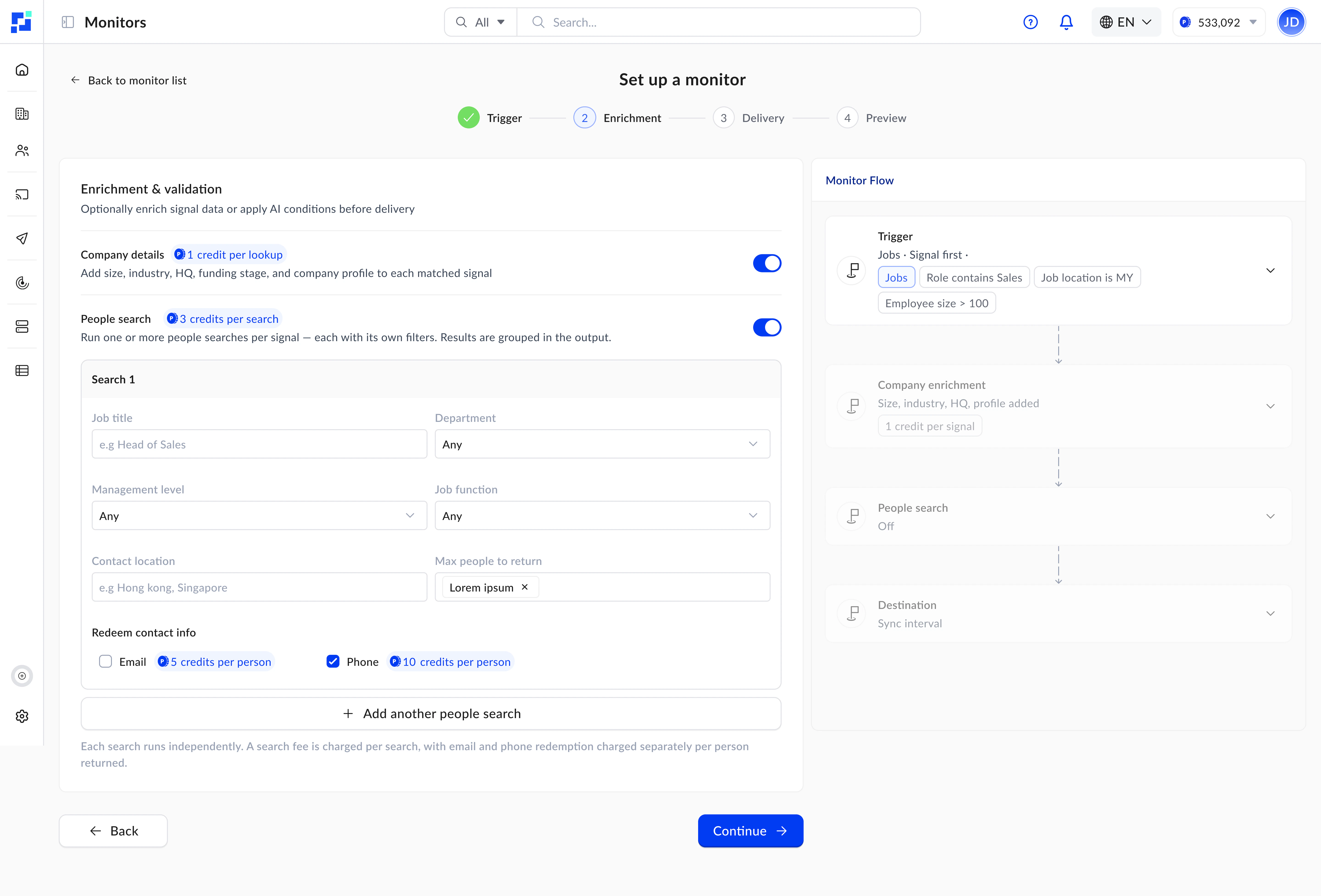
Matching signals are enriched with full company profiles and, optionally, people contacts — all in a single trigger. No extra calls needed.
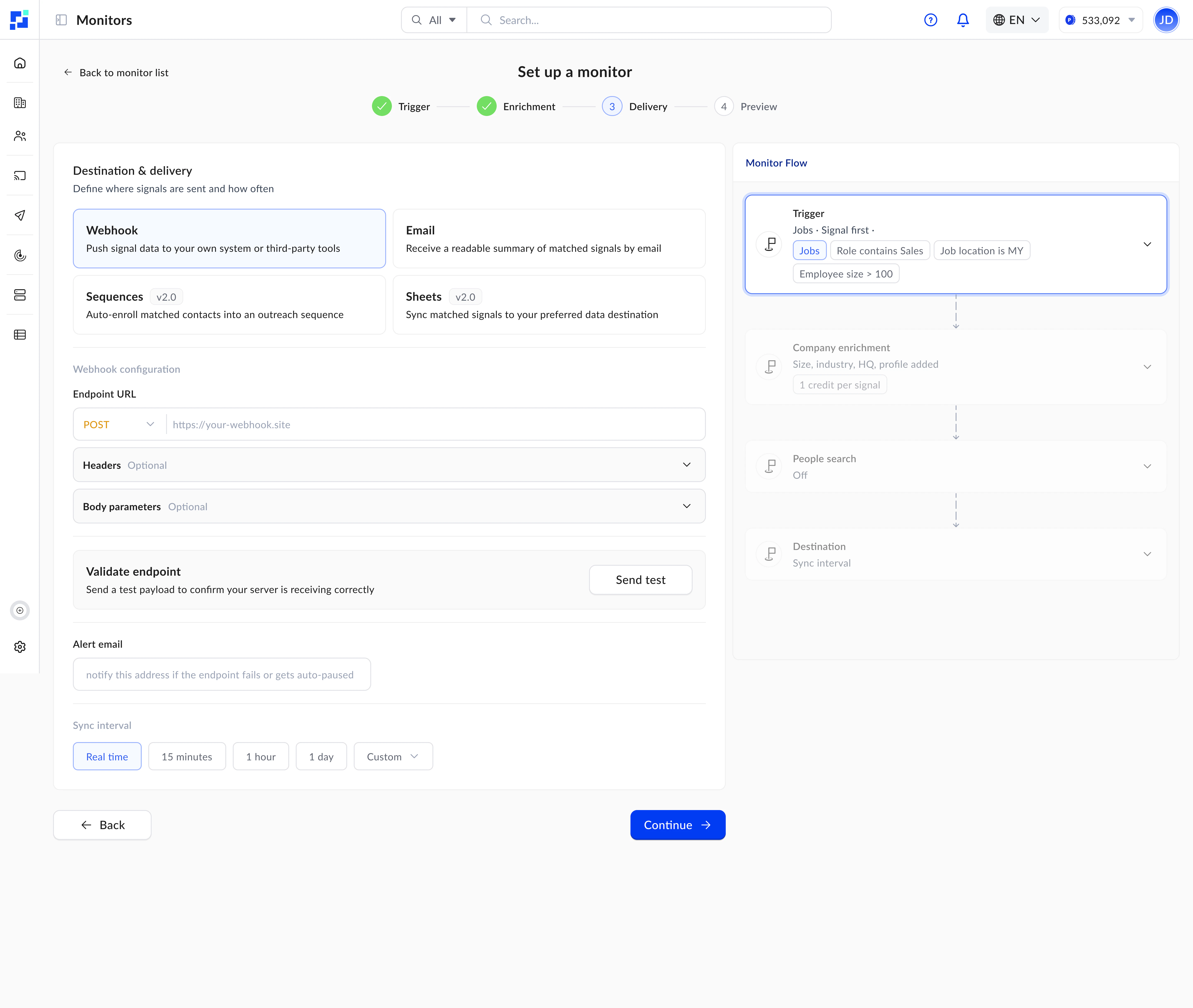
Results arrive at your webhook endpoint or email inbox. You also get full statistics and log history through the dashboard endpoints.
***
## Detection Modes
Every monitor operates in one of two detection modes:
**Signals drive discovery.** You define what signals to look for — the system finds matching signals across all companies, then enriches the results.
Use **global company filters** (`company_filters`) as a second layer to narrow which companies qualify. For example: "Find all AI job postings, but only from companies with 1,000+ employees."
Best for:
* Broad market scanning and trend discovery
* Finding new companies you have never tracked before
* Signal-driven prospecting at scale
```
Signal Filters → Matching Signals → Global Company Filters (optional) → Enrichment → Delivery
```
**Specific companies drive discovery.** You provide a list of target companies via `companies`, `domains`, or `linkedin_urls` and the system monitors them for matching signals.
**Global company filters** (`company_filters`) still apply as a second layer here — useful when combining a watch list with broader criteria.
Best for:
* Tracking named accounts ("alert me when OpenAI posts new jobs")
* Competitive intelligence on specific companies
* Account-based monitoring pipelines
```
Target Companies (companies / domains / linkedin_urls) → Signal Filters → Global Company Filters (optional) → Enrichment → Delivery
```
***
## Signal Types
Monitors currently support three signal types, with more being added regularly:
New job postings — filter by title, location, posting date, and more.
Company news — launches, partnerships, funding rounds, leadership changes, and more.
Active ad campaigns — filter by target location, date range, and keywords.
### What Each Signal Tells You
| Signal Type | What It Reveals | Example Use Cases |
| ------------------ | -------------------------------------------------------------------------------------------------------------------------- | ----------------------------------------------------------------------------------------------------------------------- |
| **Jobs** | A company is actively hiring — indicating growth, new initiatives, or budget allocation in specific departments. | A surge in engineering hires often signals a new product build. Sales hiring suggests revenue expansion. |
| **News** | Company milestones — funding rounds, product launches, partnerships, leadership changes, or challenges. | A funding announcement is an ideal time to reach out. Leadership changes create new decision-maker opportunities. |
| **Advertisements** | Where and how a company is spending on marketing — revealing expansion plans, target markets, and competitive positioning. | Heavy ad spend in a new geography signals market entry. Competitors running similar campaigns indicate market activity. |
### Delivery Cadence
You control how frequently your monitor scans for new signals using `frequency_minute`:
| Setting | Behavior | Best For |
| ----------------- | ------------------------------------------------------------- | -------------------------------------------------- |
| **`0` (default)** | **Real-time** — signals detected and delivered as they appear | Time-sensitive alerts, competitive intelligence |
| `15` | Every 15 minutes | High-priority monitoring with predictable delivery |
| `60` | Hourly | Balanced frequency for moderate-volume monitors |
| `1440` | Daily | Digest-style summaries, lower-priority tracking |
The signal library is continuously expanding. New signal types are added as they become available — your existing monitors are not affected when new types launch.
***
## Global Company Filters
One of the most powerful features of monitors is the ability to combine signal filters with **global company filters**. This means you can define criteria like:
* "Companies with **500+ employees** that are **hiring for AI roles**"
* "**US-based SaaS companies** that appeared in **product launch news**"
* "Companies using **specific technologies** that are running **ad campaigns** in Europe"
Global company filters (`company_filters`) accept the same parameters as the [Company Search](/en/api-reference/endpoint/companies/search) endpoint — locations, employee size, industries, technologies, verticals, and more.
In `company_first` mode, use `companies` (domain\_search\_ids), `domains`, or `linkedin_urls` to specify your target company list — only one is required. `company_filters` adds additional filtering criteria in both modes.
***
## People Enrichment
When you enable people enrichment, each trigger automatically finds relevant contacts at the matched companies. Configure `people_enrichment_configs` with:
* **Filters** — management levels, departments, titles, locations — same parameters as the [People Search](/en/api-reference/endpoint/people/search) endpoint
* **Contact types** — `email-work`, `email-personal`, `phone` — refers to the [Redeem](/en/api-reference/endpoint/redeem/people) endpoint contact types
* **Max people to return** — 1 to 25 per config layer
You can define **multiple enrichment layers**, each with different filters. For example, one layer for C-suite executives and another for engineering directors. Each layer runs an independent people search.
Each enrichment layer consumes people search credits per trigger, regardless of how many people are returned. Plan your layers based on the distinct audiences you need.
***
## Understanding Credits
Each monitor trigger consumes credits based on what it processes. Refer to the [Pricing](/en/get-started/pricing) page for the latest credit rates.
| Credit Type | How It Is Consumed |
| ------------------------ | -------------------------------------------------------------------------------------------------------------------------------------- |
| **Trigger credit** | 10 credits per trigger |
| **Company credit** | Per company enriched in the results |
| **People search credit** | Per enrichment layer in `people_enrichment_configs` — each layer runs a people search (same credit cost as the People Search endpoint) |
| **Redeem credit** | Per person redeemed — charged on successful retrieval only, regardless of the number of emails or phone numbers returned per person |
### Example
A monitor configured with `is_company_enrichment: true`, one people enrichment layer with email redemption, and `max_records_per_trigger: 5` triggers and finds 3 companies with 2 people each:
| Component | Calculation | Credits |
| ------------- | -------------------------------------------------------- | ------------------------------- |
| Trigger | 1 trigger | 10 |
| Companies | 3 enriched companies | 3 |
| People search | 1 enrichment layer | people search credits |
| People redeem | 6 people redeemed (3 × 2, charged per person on success) | 6 × redeem rate |
| **Total** | | **13 + people search + redeem** |
Credit rates may change — always check the [Pricing](/en/get-started/pricing) page for the latest information. Only enable people enrichment if you need contact data.
***
## Destination Types
Receive results as a JSON payload at your HTTP endpoint. Include custom headers and body fields for authentication. Verify delivery authenticity using the monitor's signature.
This is the recommended destination for developers. See [Setting up Webhooks](/en/developer-guides/setting-up-webhooks) for a complete walkthrough.
Receive formatted results via email. Supports white-label branding for agencies and teams.
Interested in white-label email delivery? [Get in touch](https://pubrio.com/en/get-in-touch) to learn more.
Auto-enroll matched contacts into an outreach sequence. Requires `sequence_identifier` and `record_type` in `destination_config`.
See the [Create Monitor](/en/api-reference/endpoint/monitors/create) endpoint reference for configuration details.
***
## Configuration Reference
All configuration parameters have sensible defaults. In most cases, you only need to set the filters and destination — everything else is optional.
| Parameter | Range | Default | Description |
| ------------------------- | --------- | ------- | ------------------------------------------- |
| `frequency_minute` | 0 - 10080 | 0 | Minutes between scans. **`0` = real-time.** |
| `max_records_per_trigger` | 1 - 100 | 25 | Maximum records delivered per trigger. |
| `max_daily_trigger` | 0 - 86400 | 500 | Daily trigger cap. `0` = unlimited. |
| `max_retry_per_trigger` | 0 - 3 | 1 | Retry attempts on delivery failure. |
| `retry_delay_second` | 1 - 5 | 1 | Seconds between retry attempts. |
| `max_failure_trigger` | 1 - 10 | 5 | Consecutive failures before auto-pause. |
***
## Filter Reference
Signal and company filters reuse the same schemas as the search endpoints:
Same filters as Job Search — titles, locations, posting dates, and more.
Same filters as News Search — categories, galleries, keywords, and dates.
Same filters as Advertisements Search — target locations, date ranges, and keywords.
Same filters as Company Search — locations, size, industries, technologies, verticals, and more.
People enrichment filters (management levels, departments, titles) follow the same structure as the [People Search](/en/api-reference/endpoint/people/search) endpoint.
***
## Next Steps
Connect your systems to receive data in real-time.
Frequency, delivery reliability, and failure handling.
Complete company\_first and signal\_first walkthroughs with copyable code.
Jump to the Create Monitor endpoint reference.
Choose which signals to track (jobs, news, advertisements) and set signal-level filters. Optionally layer on **global company filters** to narrow results — for example, only surface signals from companies with 500+ employees in the US.
With `frequency_minute` set to `0` (the default), your monitor runs in real-time — detecting and delivering signals as they appear.
Matching signals are enriched with full company profiles and, optionally, people contacts — all in a single trigger. No extra calls needed.
Results arrive at your webhook endpoint or email inbox. You also get full statistics and log history through the dashboard endpoints.
***
## Detection Modes
Every monitor operates in one of two detection modes:
**Signals drive discovery.** You define what signals to look for — the system finds matching signals across all companies, then enriches the results.
Use **global company filters** (`company_filters`) as a second layer to narrow which companies qualify. For example: "Find all AI job postings, but only from companies with 1,000+ employees."
Best for:
* Broad market scanning and trend discovery
* Finding new companies you have never tracked before
* Signal-driven prospecting at scale
```
Signal Filters → Matching Signals → Global Company Filters (optional) → Enrichment → Delivery
```
**Specific companies drive discovery.** You provide a list of target companies via `companies`, `domains`, or `linkedin_urls` and the system monitors them for matching signals.
**Global company filters** (`company_filters`) still apply as a second layer here — useful when combining a watch list with broader criteria.
Best for:
* Tracking named accounts ("alert me when OpenAI posts new jobs")
* Competitive intelligence on specific companies
* Account-based monitoring pipelines
```
Target Companies (companies / domains / linkedin_urls) → Signal Filters → Global Company Filters (optional) → Enrichment → Delivery
```
***
## Signal Types
Monitors currently support three signal types, with more being added regularly:
New job postings — filter by title, location, posting date, and more.
Company news — launches, partnerships, funding rounds, leadership changes, and more.
Active ad campaigns — filter by target location, date range, and keywords.
### What Each Signal Tells You
| Signal Type | What It Reveals | Example Use Cases |
| ------------------ | -------------------------------------------------------------------------------------------------------------------------- | ----------------------------------------------------------------------------------------------------------------------- |
| **Jobs** | A company is actively hiring — indicating growth, new initiatives, or budget allocation in specific departments. | A surge in engineering hires often signals a new product build. Sales hiring suggests revenue expansion. |
| **News** | Company milestones — funding rounds, product launches, partnerships, leadership changes, or challenges. | A funding announcement is an ideal time to reach out. Leadership changes create new decision-maker opportunities. |
| **Advertisements** | Where and how a company is spending on marketing — revealing expansion plans, target markets, and competitive positioning. | Heavy ad spend in a new geography signals market entry. Competitors running similar campaigns indicate market activity. |
### Delivery Cadence
You control how frequently your monitor scans for new signals using `frequency_minute`:
| Setting | Behavior | Best For |
| ----------------- | ------------------------------------------------------------- | -------------------------------------------------- |
| **`0` (default)** | **Real-time** — signals detected and delivered as they appear | Time-sensitive alerts, competitive intelligence |
| `15` | Every 15 minutes | High-priority monitoring with predictable delivery |
| `60` | Hourly | Balanced frequency for moderate-volume monitors |
| `1440` | Daily | Digest-style summaries, lower-priority tracking |
The signal library is continuously expanding. New signal types are added as they become available — your existing monitors are not affected when new types launch.
***
## Global Company Filters
One of the most powerful features of monitors is the ability to combine signal filters with **global company filters**. This means you can define criteria like:
* "Companies with **500+ employees** that are **hiring for AI roles**"
* "**US-based SaaS companies** that appeared in **product launch news**"
* "Companies using **specific technologies** that are running **ad campaigns** in Europe"
Global company filters (`company_filters`) accept the same parameters as the [Company Search](/en/api-reference/endpoint/companies/search) endpoint — locations, employee size, industries, technologies, verticals, and more.
In `company_first` mode, use `companies` (domain\_search\_ids), `domains`, or `linkedin_urls` to specify your target company list — only one is required. `company_filters` adds additional filtering criteria in both modes.
***
## People Enrichment
When you enable people enrichment, each trigger automatically finds relevant contacts at the matched companies. Configure `people_enrichment_configs` with:
* **Filters** — management levels, departments, titles, locations — same parameters as the [People Search](/en/api-reference/endpoint/people/search) endpoint
* **Contact types** — `email-work`, `email-personal`, `phone` — refers to the [Redeem](/en/api-reference/endpoint/redeem/people) endpoint contact types
* **Max people to return** — 1 to 25 per config layer
You can define **multiple enrichment layers**, each with different filters. For example, one layer for C-suite executives and another for engineering directors. Each layer runs an independent people search.
Each enrichment layer consumes people search credits per trigger, regardless of how many people are returned. Plan your layers based on the distinct audiences you need.
***
## Understanding Credits
Each monitor trigger consumes credits based on what it processes. Refer to the [Pricing](/en/get-started/pricing) page for the latest credit rates.
| Credit Type | How It Is Consumed |
| ------------------------ | -------------------------------------------------------------------------------------------------------------------------------------- |
| **Trigger credit** | 10 credits per trigger |
| **Company credit** | Per company enriched in the results |
| **People search credit** | Per enrichment layer in `people_enrichment_configs` — each layer runs a people search (same credit cost as the People Search endpoint) |
| **Redeem credit** | Per person redeemed — charged on successful retrieval only, regardless of the number of emails or phone numbers returned per person |
### Example
A monitor configured with `is_company_enrichment: true`, one people enrichment layer with email redemption, and `max_records_per_trigger: 5` triggers and finds 3 companies with 2 people each:
| Component | Calculation | Credits |
| ------------- | -------------------------------------------------------- | ------------------------------- |
| Trigger | 1 trigger | 10 |
| Companies | 3 enriched companies | 3 |
| People search | 1 enrichment layer | people search credits |
| People redeem | 6 people redeemed (3 × 2, charged per person on success) | 6 × redeem rate |
| **Total** | | **13 + people search + redeem** |
Credit rates may change — always check the [Pricing](/en/get-started/pricing) page for the latest information. Only enable people enrichment if you need contact data.
***
## Destination Types
Receive results as a JSON payload at your HTTP endpoint. Include custom headers and body fields for authentication. Verify delivery authenticity using the monitor's signature.
This is the recommended destination for developers. See [Setting up Webhooks](/en/developer-guides/setting-up-webhooks) for a complete walkthrough.
Receive formatted results via email. Supports white-label branding for agencies and teams.
Interested in white-label email delivery? [Get in touch](https://pubrio.com/en/get-in-touch) to learn more.
Auto-enroll matched contacts into an outreach sequence. Requires `sequence_identifier` and `record_type` in `destination_config`.
See the [Create Monitor](/en/api-reference/endpoint/monitors/create) endpoint reference for configuration details.
***
## Configuration Reference
All configuration parameters have sensible defaults. In most cases, you only need to set the filters and destination — everything else is optional.
| Parameter | Range | Default | Description |
| ------------------------- | --------- | ------- | ------------------------------------------- |
| `frequency_minute` | 0 - 10080 | 0 | Minutes between scans. **`0` = real-time.** |
| `max_records_per_trigger` | 1 - 100 | 25 | Maximum records delivered per trigger. |
| `max_daily_trigger` | 0 - 86400 | 500 | Daily trigger cap. `0` = unlimited. |
| `max_retry_per_trigger` | 0 - 3 | 1 | Retry attempts on delivery failure. |
| `retry_delay_second` | 1 - 5 | 1 | Seconds between retry attempts. |
| `max_failure_trigger` | 1 - 10 | 5 | Consecutive failures before auto-pause. |
***
## Filter Reference
Signal and company filters reuse the same schemas as the search endpoints:
Same filters as Job Search — titles, locations, posting dates, and more.
Same filters as News Search — categories, galleries, keywords, and dates.
Same filters as Advertisements Search — target locations, date ranges, and keywords.
Same filters as Company Search — locations, size, industries, technologies, verticals, and more.
People enrichment filters (management levels, departments, titles) follow the same structure as the [People Search](/en/api-reference/endpoint/people/search) endpoint.
***
## Next Steps
Connect your systems to receive data in real-time.
Frequency, delivery reliability, and failure handling.
Complete company\_first and signal\_first walkthroughs with copyable code.
Jump to the Create Monitor endpoint reference.