> ## Documentation Index
> Fetch the complete documentation index at: https://docs.pubrio.com/llms.txt
> Use this file to discover all available pages before exploring further.
# Creating and Managing Sequences
> Learn how to create, customize, and manage outreach sequences to engage your prospects effectively.
A **Sequence** in Pubrio is a planned series of outreach steps—such as emails, SMS, and LinkedIn actions—delivered over time to engage your prospects consistently and efficiently. Sequences help you automate follow-ups, nurture leads, and increase your chances of meaningful conversations and conversions.
## Why Use Sequences?
Sequences eliminate guesswork by scheduling your outreach activities at the right intervals, ensuring no prospect is missed or forgotten. They help standardize best practices across your team and provide clear visibility into campaign performance for continuous optimization.
 ## How to Create a Sequence
1. Navigate to the **Sequences** section from the main menu.
2. Click **Create Sequence** to start a new sequence.
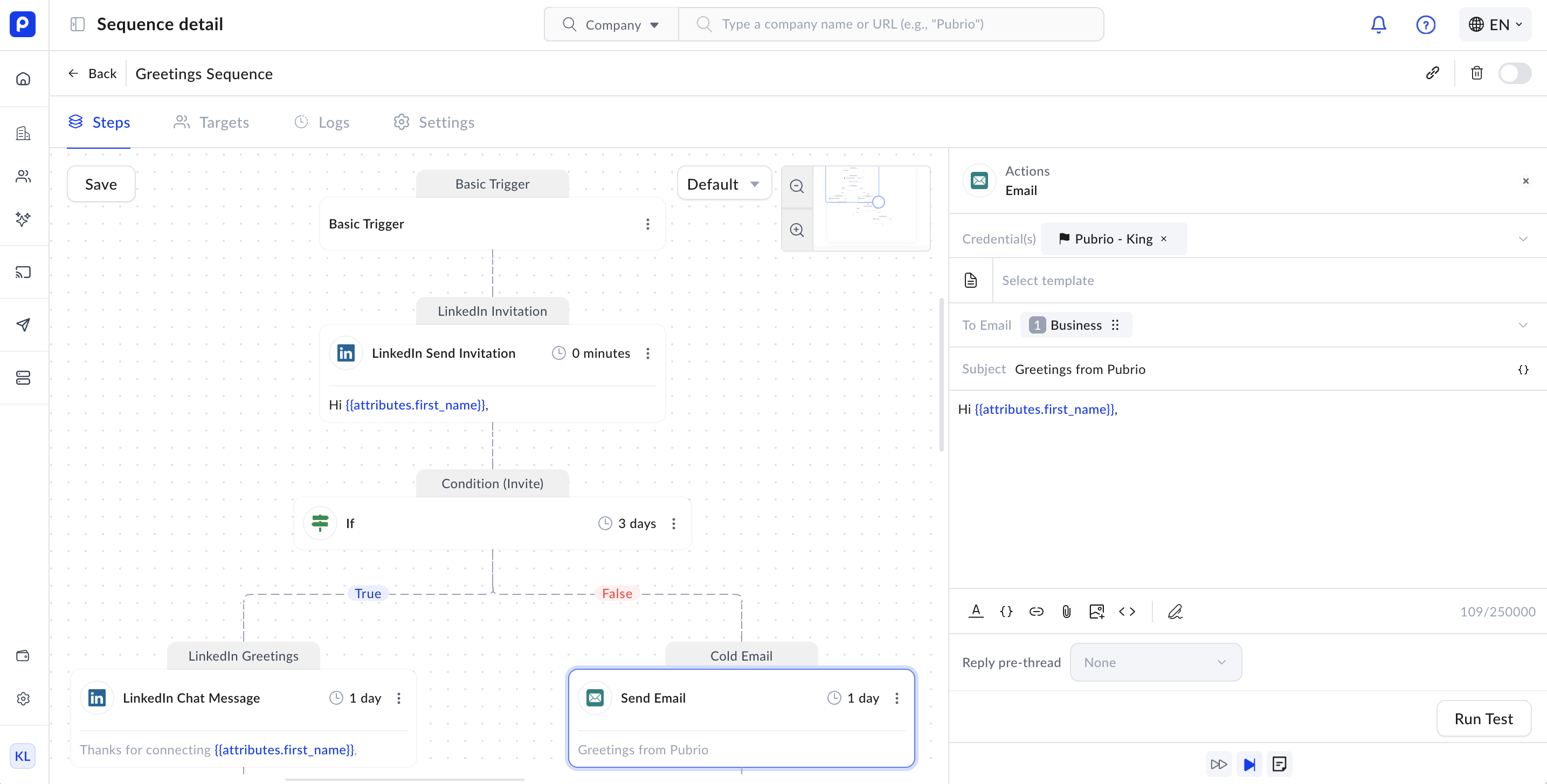
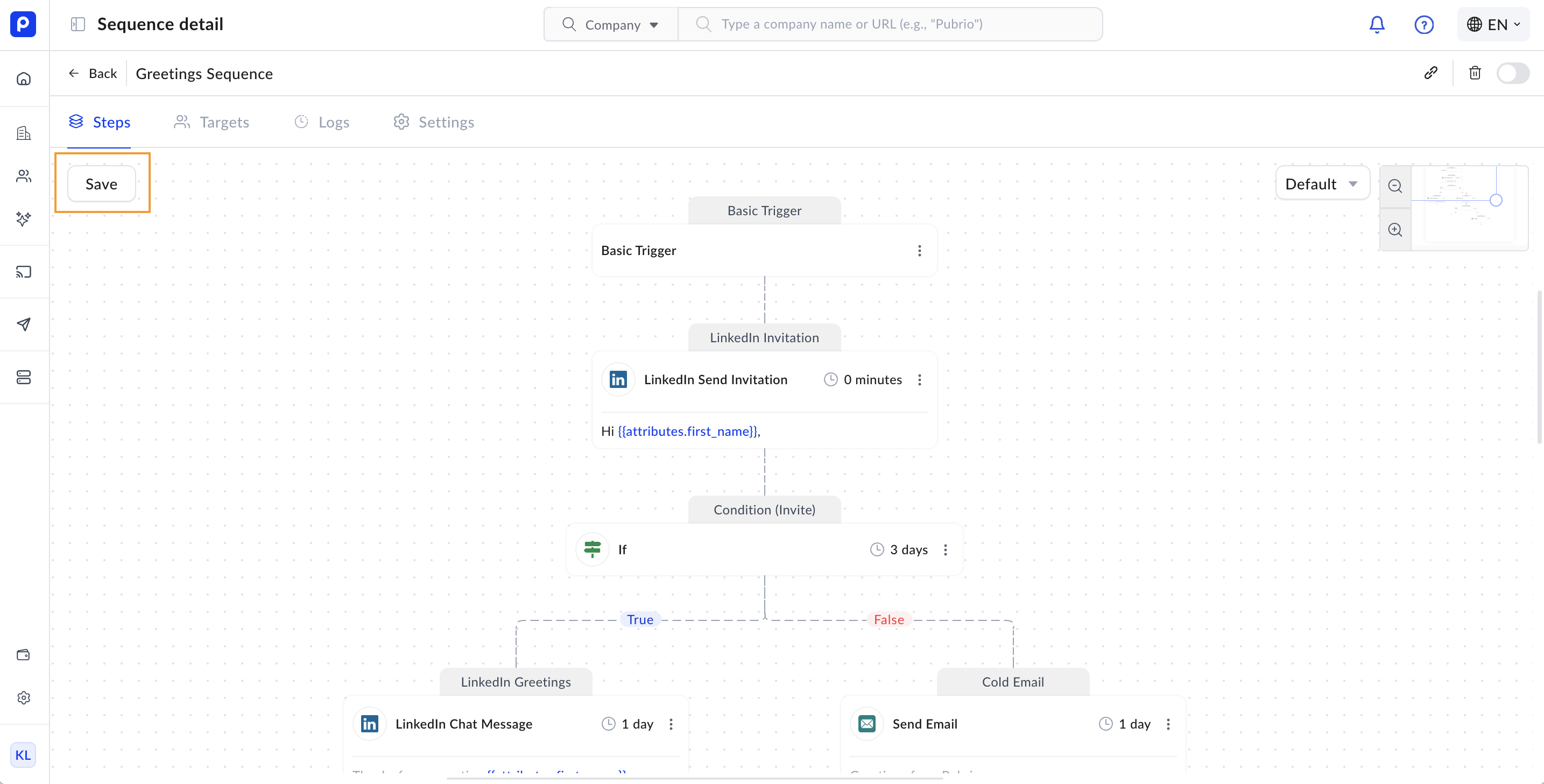
3. Add steps to your sequence. You can combine various step types such as emails, SMS, and LinkedIn actions.
4. **Remember to add a trigger** — this defines how and when your sequence starts for each contact. Without a trigger, the sequence won’t begin automatically.
5. Configure timing for each step using two types of controls:
Delay controls how long to wait after a contact enters the sequence before executing the step. This ensures a paced outreach cadence.
## How to Create a Sequence
1. Navigate to the **Sequences** section from the main menu.
2. Click **Create Sequence** to start a new sequence.
3. Add steps to your sequence. You can combine various step types such as emails, SMS, and LinkedIn actions.
4. **Remember to add a trigger** — this defines how and when your sequence starts for each contact. Without a trigger, the sequence won’t begin automatically.
5. Configure timing for each step using two types of controls:
Delay controls how long to wait after a contact enters the sequence before executing the step. This ensures a paced outreach cadence.
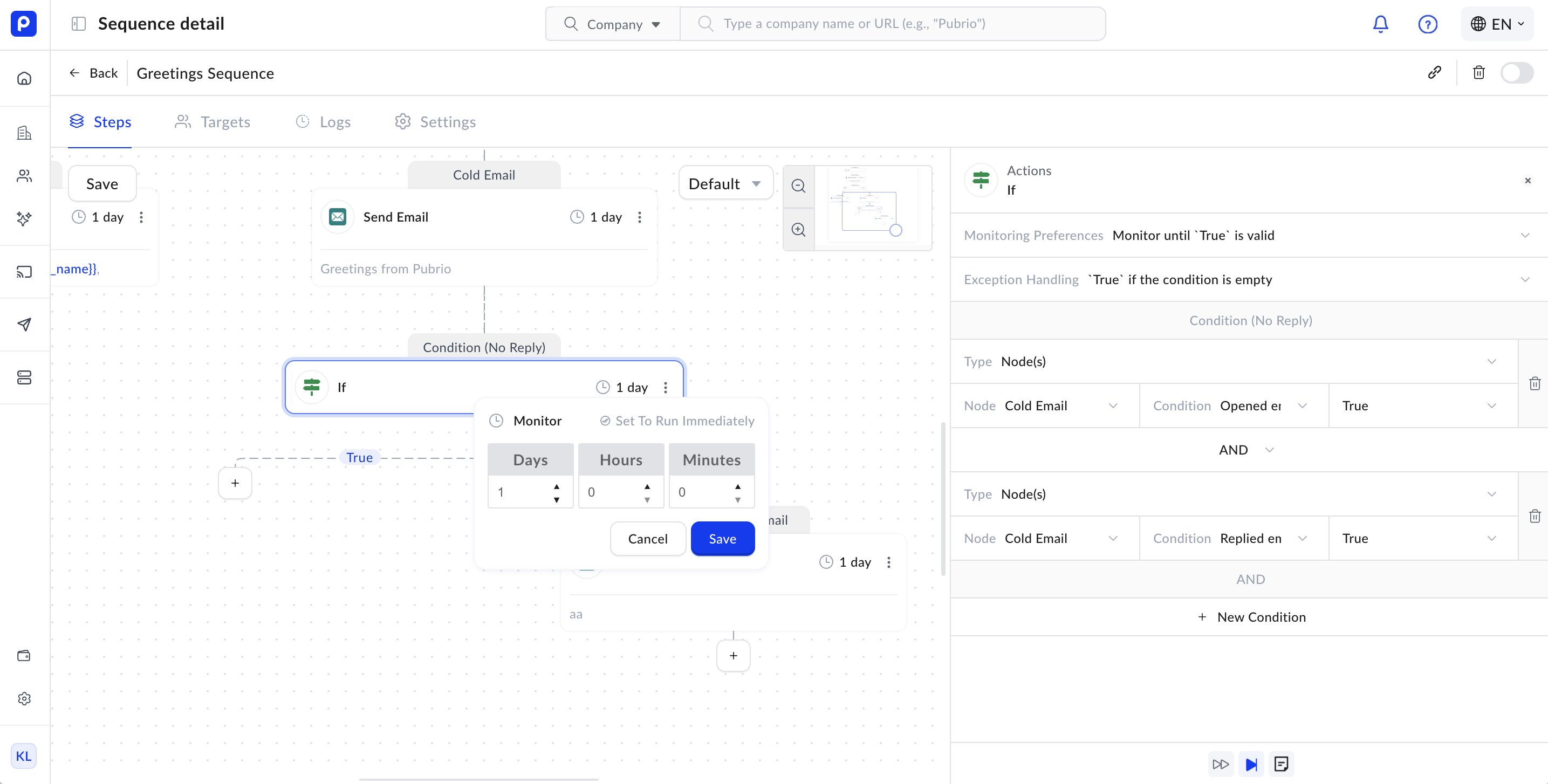
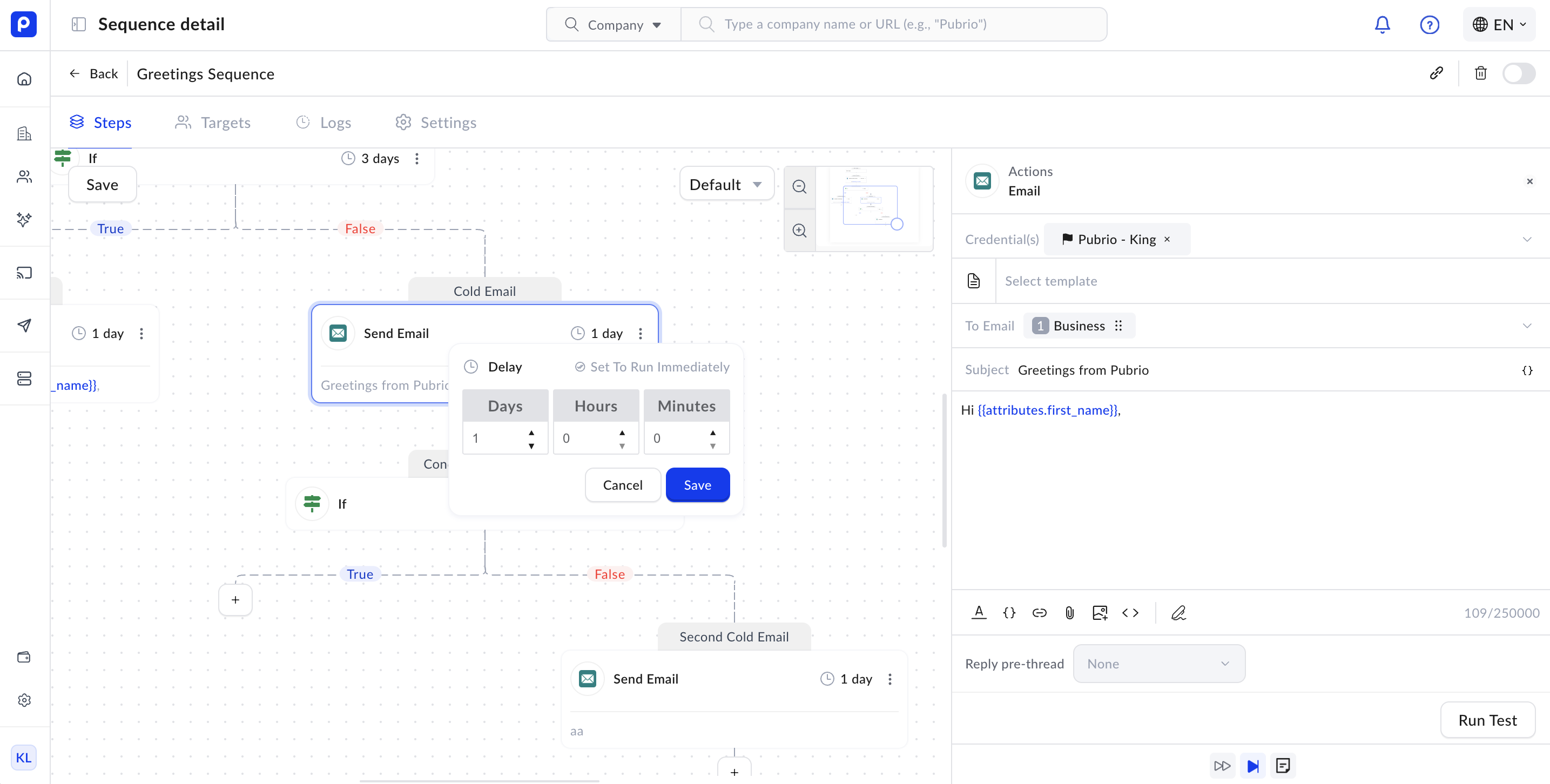 Monitor waits until specific conditions are met before moving to the next step, allowing the sequence to adapt based on prospect behavior or other triggers.
 6. Review and save your sequence.
 ***
## Setting Conditions
Conditions make your sequences smarter by controlling when steps execute based on prospect behavior or other criteria.
### Monitoring Preferences
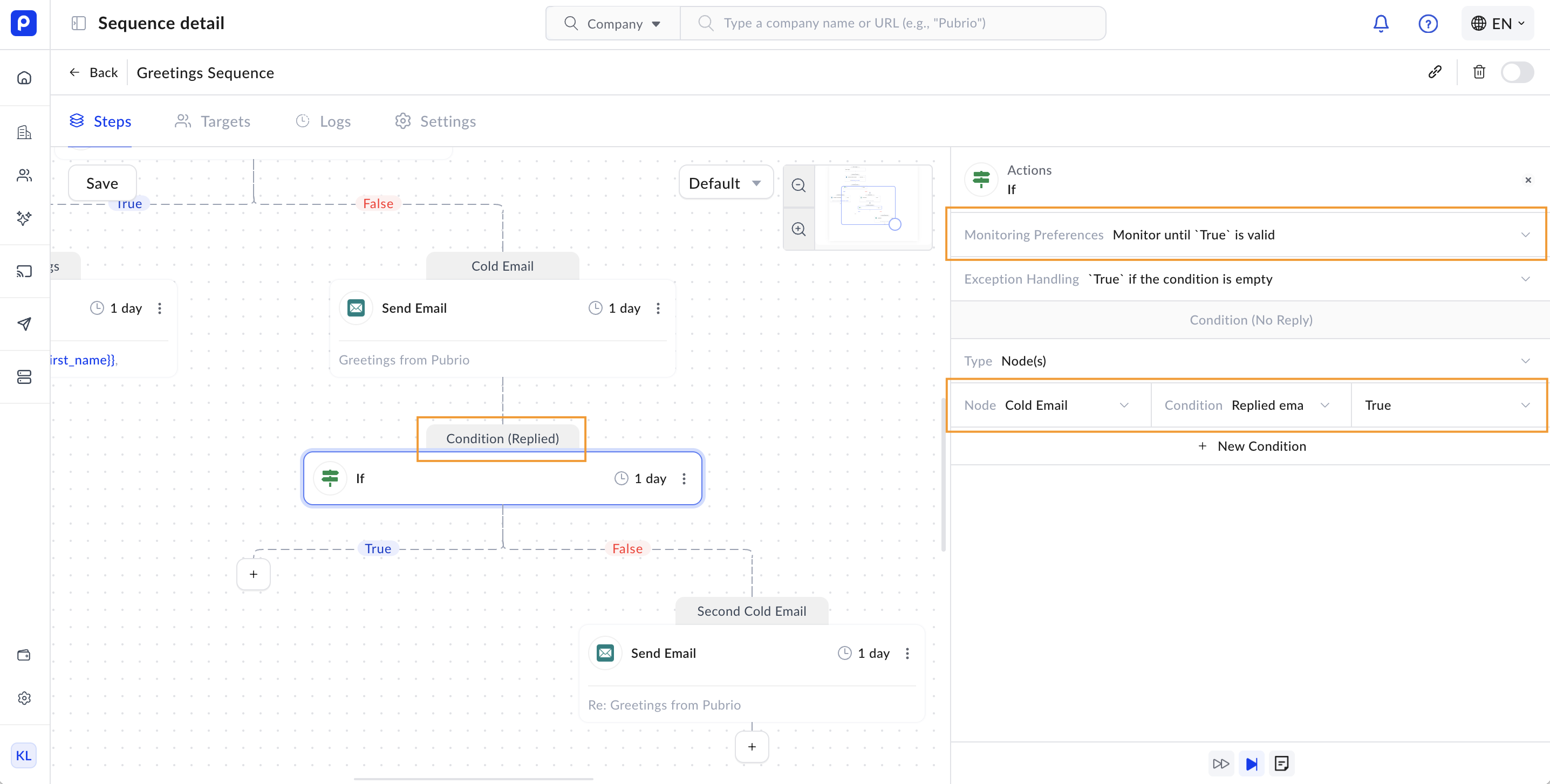
After performing certain actions, you often want to monitor the prospect’s behavior before moving on. For example, if you send an email and want to follow up only if the prospect hasn’t replied yet, you configure monitoring preferences accordingly.
> **Example:**\
> To send a follow-up only if the target has **not replied** to the previous email, set the monitoring preference to wait for a reply.\\
>
>
***
## Setting Conditions
Conditions make your sequences smarter by controlling when steps execute based on prospect behavior or other criteria.
### Monitoring Preferences
After performing certain actions, you often want to monitor the prospect’s behavior before moving on. For example, if you send an email and want to follow up only if the prospect hasn’t replied yet, you configure monitoring preferences accordingly.
> **Example:**\
> To send a follow-up only if the target has **not replied** to the previous email, set the monitoring preference to wait for a reply.\\
>
>  >
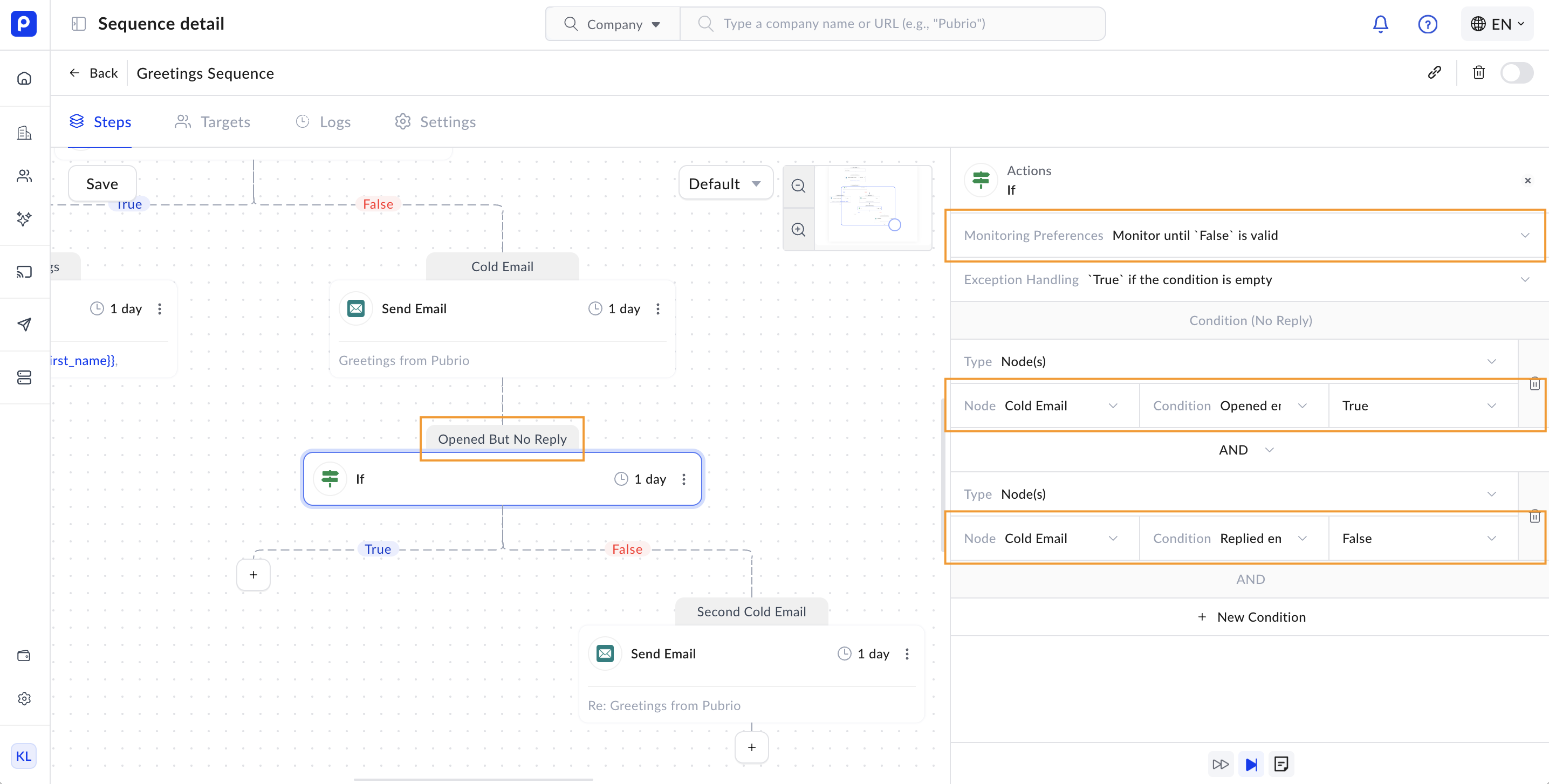
> ⚠️ Be careful with logical conditions: If you want to monitor "opened email but no reply," you must ensure the monitoring preference and node condition align correctly. Since "opened email = true" and "no reply" is also true, the system might interpret this as already satisfied.
>
>
> ⚠️ Be careful with logical conditions: If you want to monitor "opened email but no reply," you must ensure the monitoring preference and node condition align correctly. Since "opened email = true" and "no reply" is also true, the system might interpret this as already satisfied.
>
To fix this, either set monitoring preference to false or adjust the condition logic to explicitly check for "replied = true".
>
>  ### Exception Handling
Sometimes, actions fail due to reasons like expired credentials or system errors. Instead of stopping the entire sequence, you can configure exception handling to decide what happens next when an action errors out.
* Specify which condition should apply if the previous step fails.
* This ensures the sequence continues smoothly, avoiding interruptions in your outreach.
### Exception Handling
Sometimes, actions fail due to reasons like expired credentials or system errors. Instead of stopping the entire sequence, you can configure exception handling to decide what happens next when an action errors out.
* Specify which condition should apply if the previous step fails.
* This ensures the sequence continues smoothly, avoiding interruptions in your outreach.
 ## Versioning in Sequences
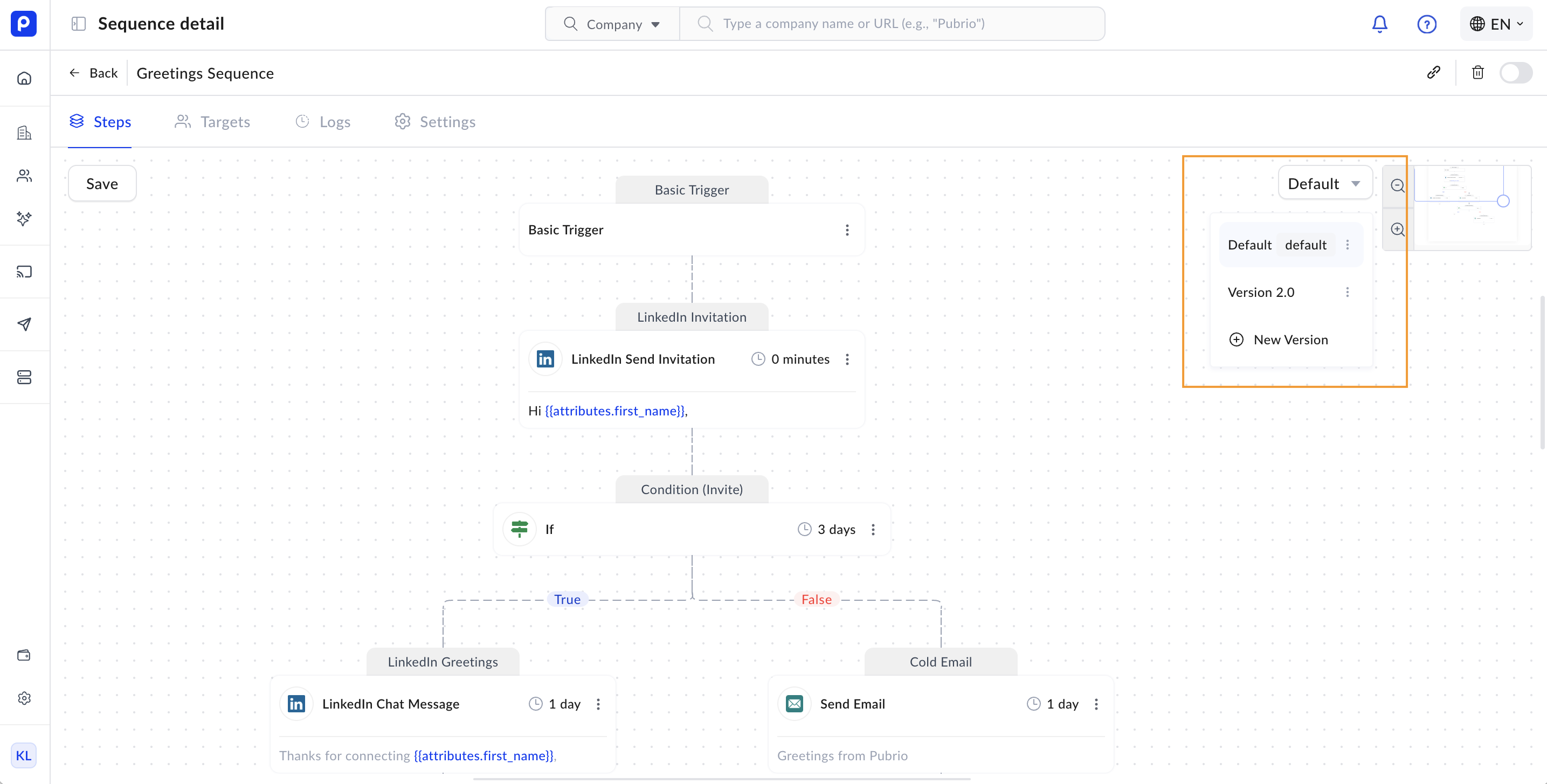
Pubrio supports multiple versions of a sequence, enabling:
* Testing different messaging or step orders.
* Running A/B tests to optimize outreach.
* Managing and switching between versions easily.
Each version can have its own steps and timing, giving you flexibility to refine your approach.
## Versioning in Sequences
Pubrio supports multiple versions of a sequence, enabling:
* Testing different messaging or step orders.
* Running A/B tests to optimize outreach.
* Managing and switching between versions easily.
Each version can have its own steps and timing, giving you flexibility to refine your approach.
 Default Version & New Targets
Sequence version has an option called **Set as Default**. This setting controls how new targets are added and how the sequence behaves:
* When a sequence version is set as **default**, any newly added target will automatically enter this version of the sequence.
* Targets who were added to earlier versions before the default change will continue executing their original version based on when they joined.
* This allows you to update your outreach strategy without disrupting ongoing sequences for existing contacts.
Default Version & New Targets
Sequence version has an option called **Set as Default**. This setting controls how new targets are added and how the sequence behaves:
* When a sequence version is set as **default**, any newly added target will automatically enter this version of the sequence.
* Targets who were added to earlier versions before the default change will continue executing their original version based on when they joined.
* This allows you to update your outreach strategy without disrupting ongoing sequences for existing contacts.
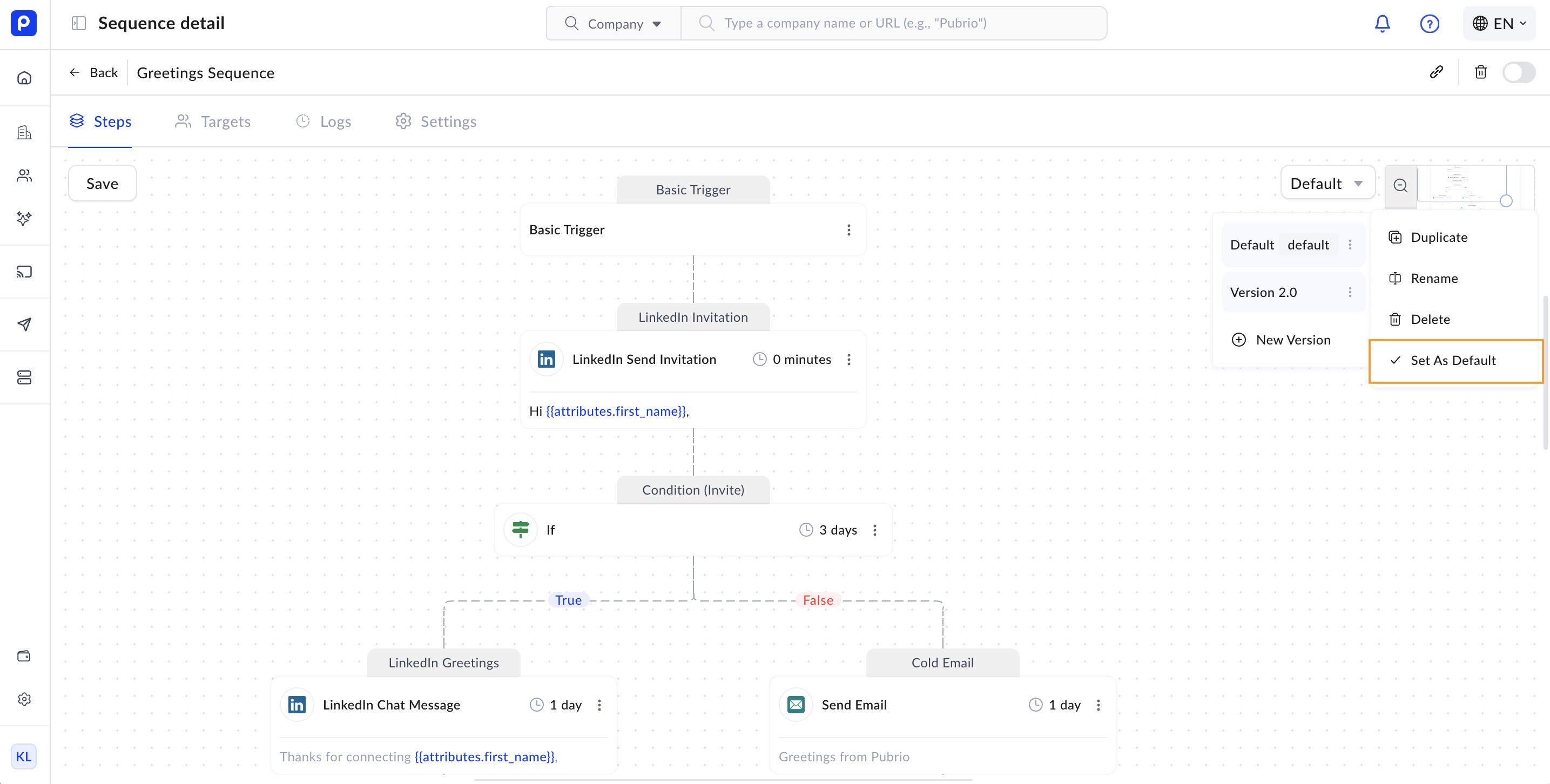 Setting the default version ensures smooth transitions when you update or improve your sequence, while preserving the experience of contacts already in progress.
## Managing Your Sequences
* **Activate/Deactivate**: Launch your sequence when ready; pause or stop as needed.
Setting the default version ensures smooth transitions when you update or improve your sequence, while preserving the experience of contacts already in progress.
## Managing Your Sequences
* **Activate/Deactivate**: Launch your sequence when ready; pause or stop as needed.
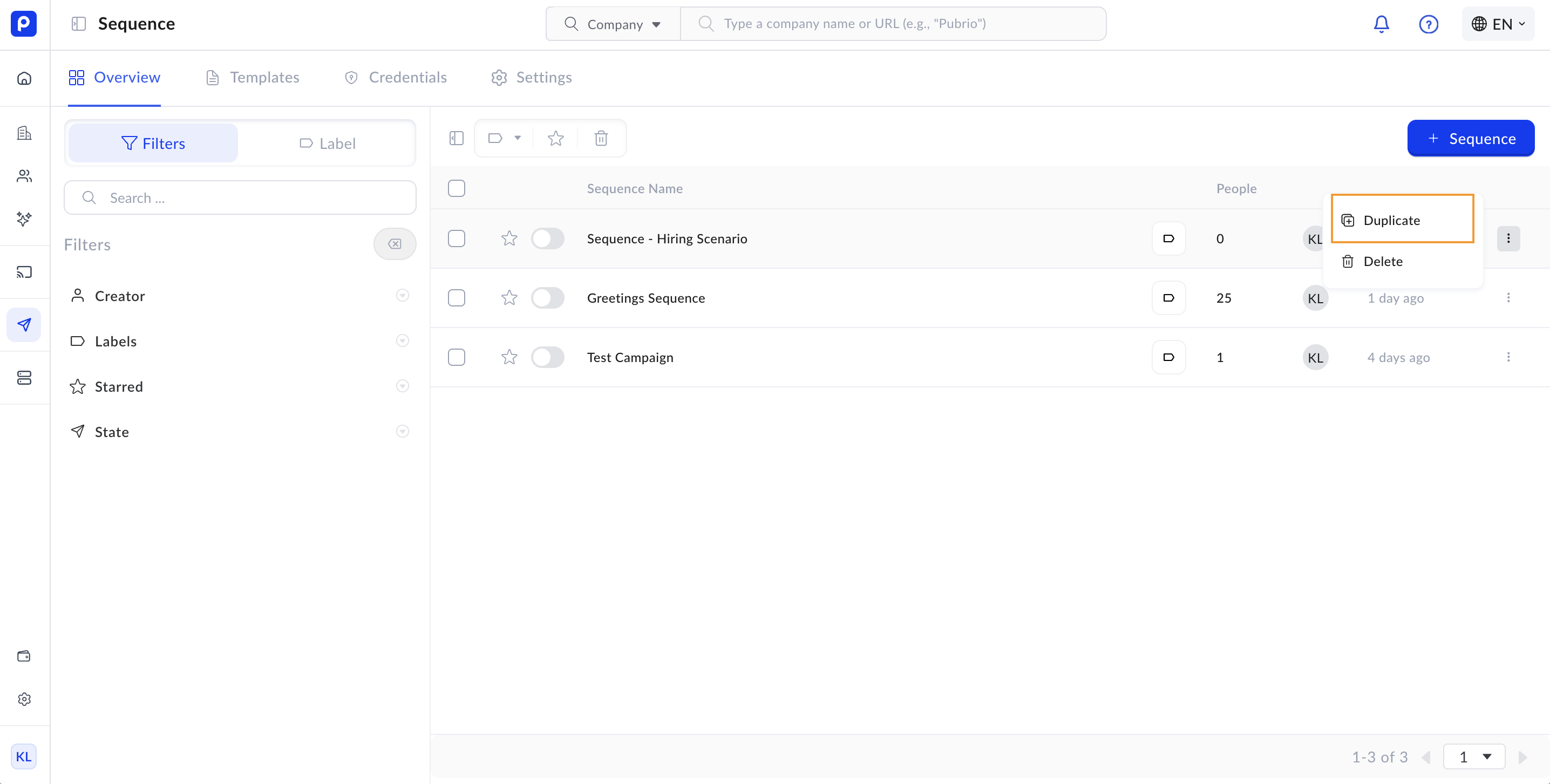
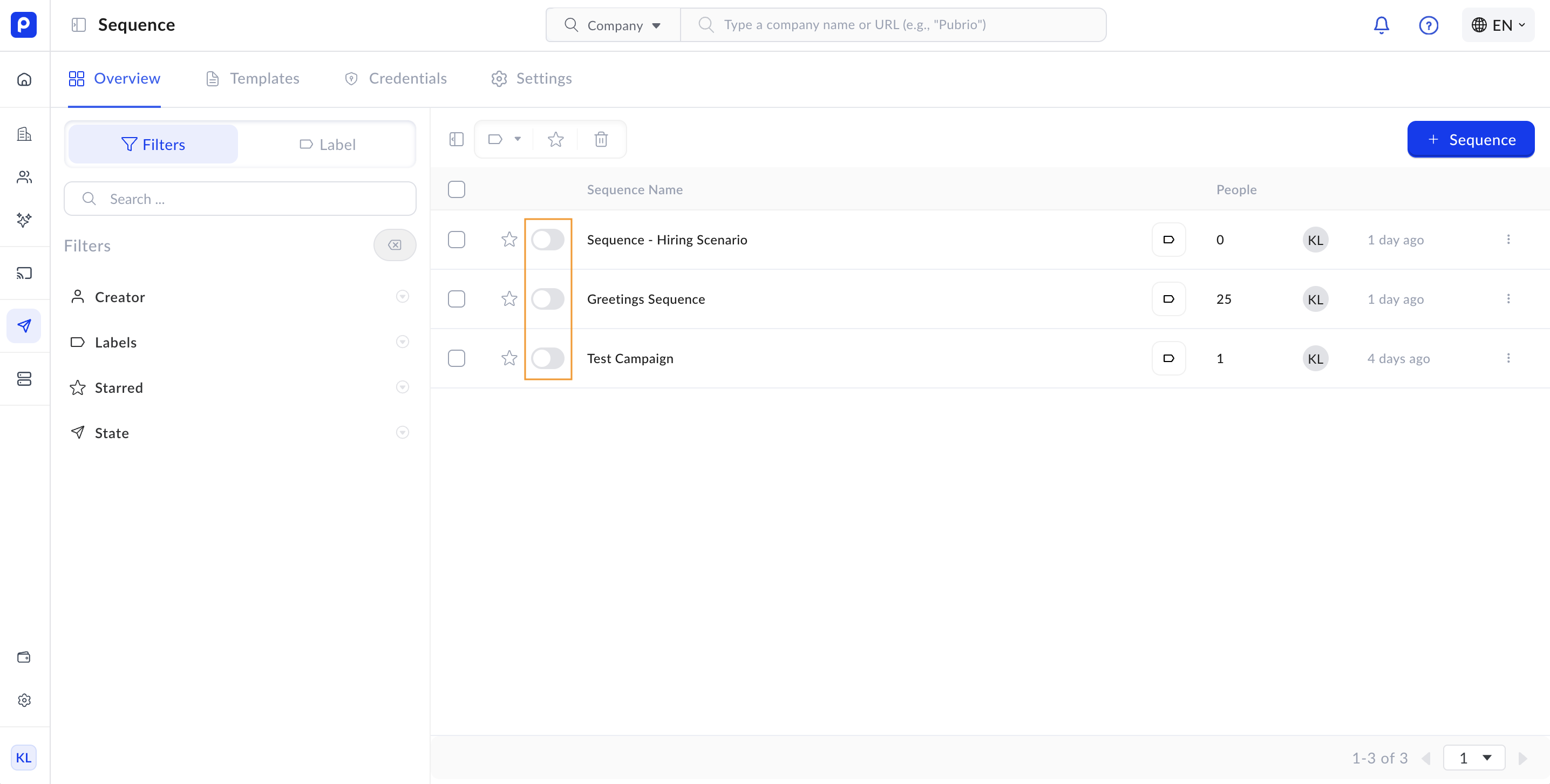 * **Clone Sequences**: Duplicate existing sequences to reuse successful outreach workflows.