

Why Monitors?
Traditional APIs require you to build and maintain your own signal pipeline — polling endpoints, tracking state, handling pagination, and stitching together multiple calls for enrichment. Monitors replace all of that with a single configuration.Real-time delivery
Signals are detected and delivered as they appear — no polling loops or cron jobs required.
Combined filtering
Combine signal filters with global company filters in one query. “Companies with 500+ employees hiring for AI roles” — one config, not multiple API calls.
Automatic enrichment
Company profiles and people contacts are enriched automatically with each trigger. No separate API calls needed.
Built-in reliability
Retry logic, failure handling, deduplication, and delivery tracking — all managed for you.
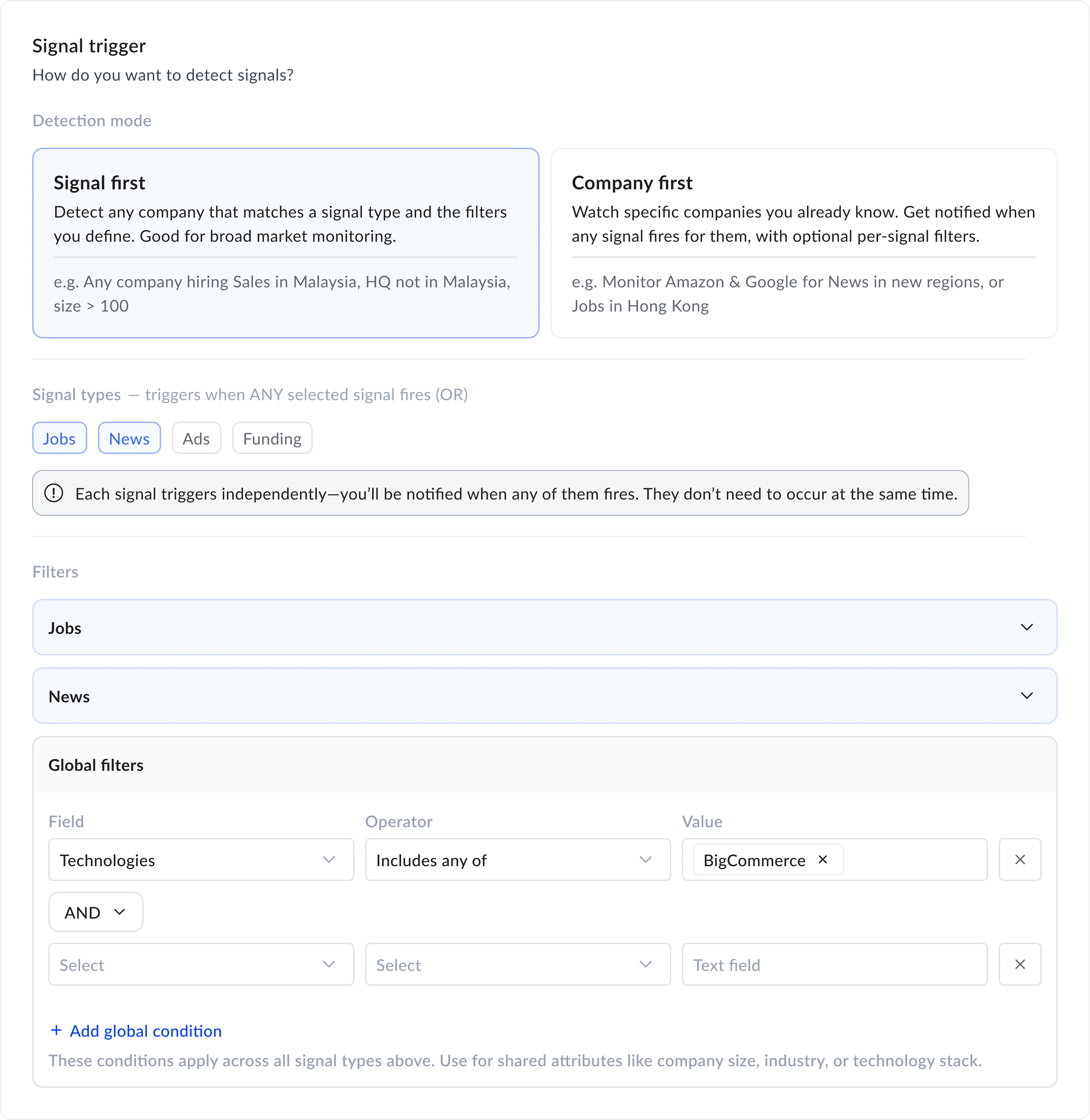
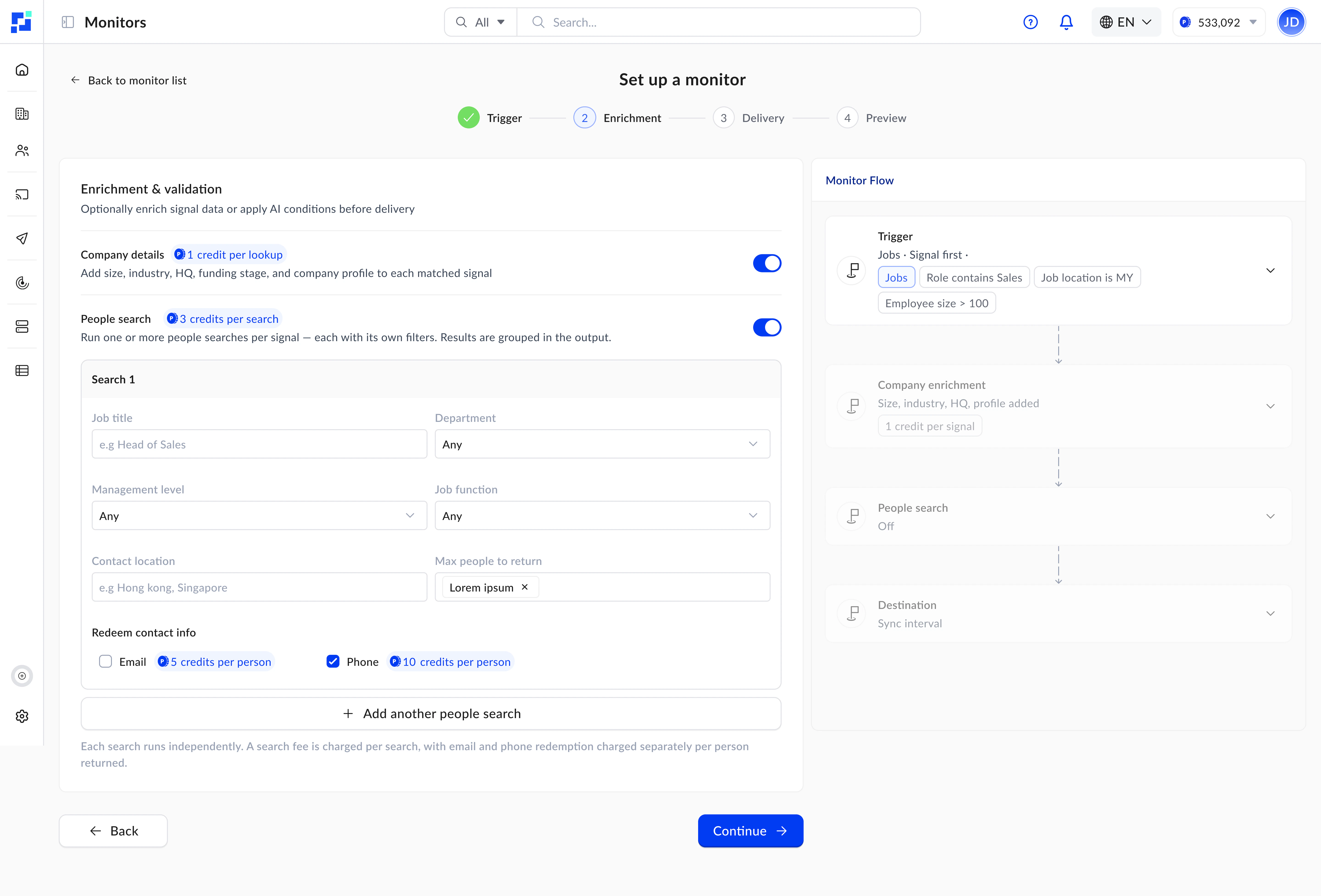
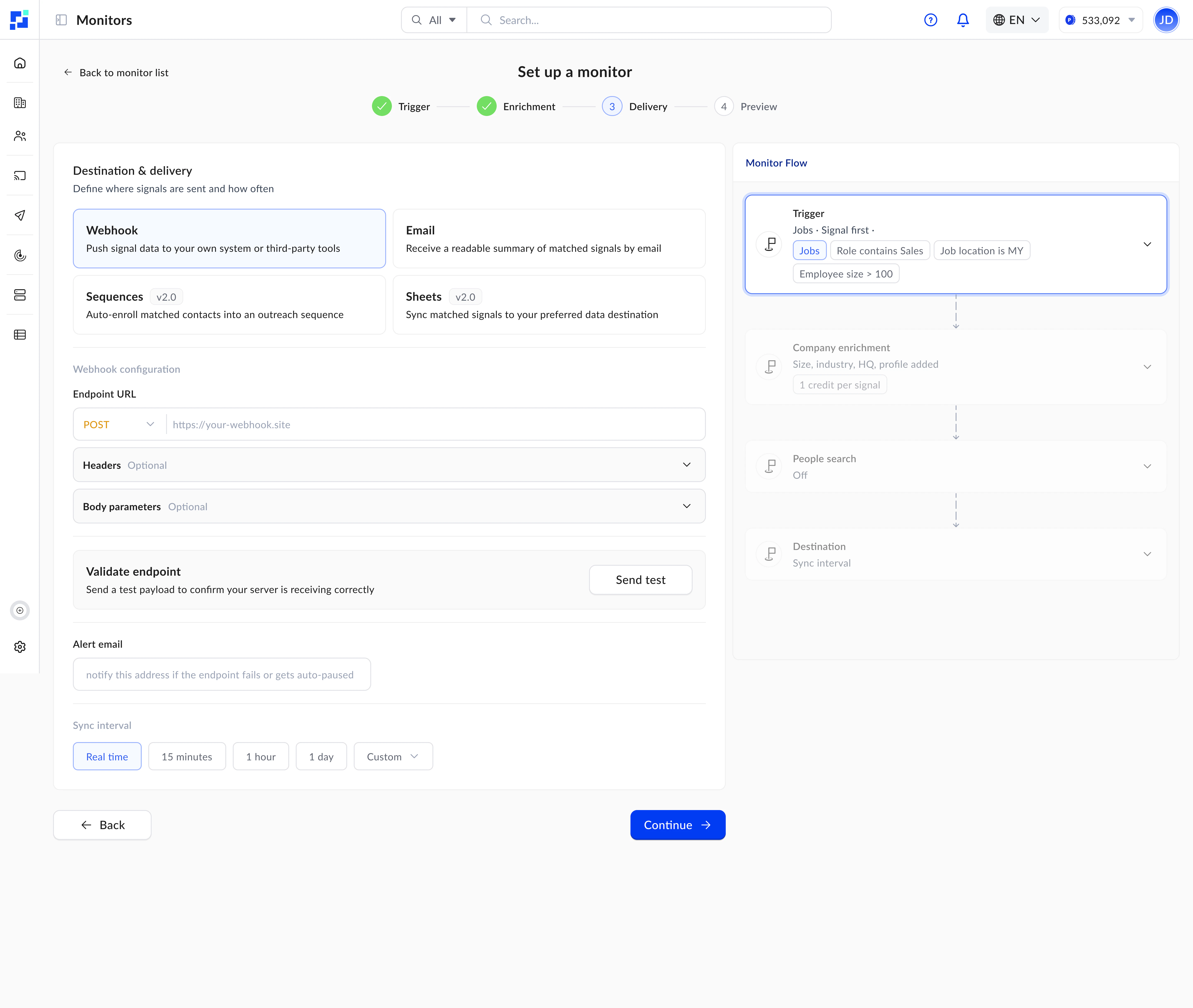
Setting up a monitor — define signals, enrich data, and deliver results in four steps.
How Monitors Work
- 1. Trigger
- 2. Enrichment
- 3. Delivery
- 4. Preview
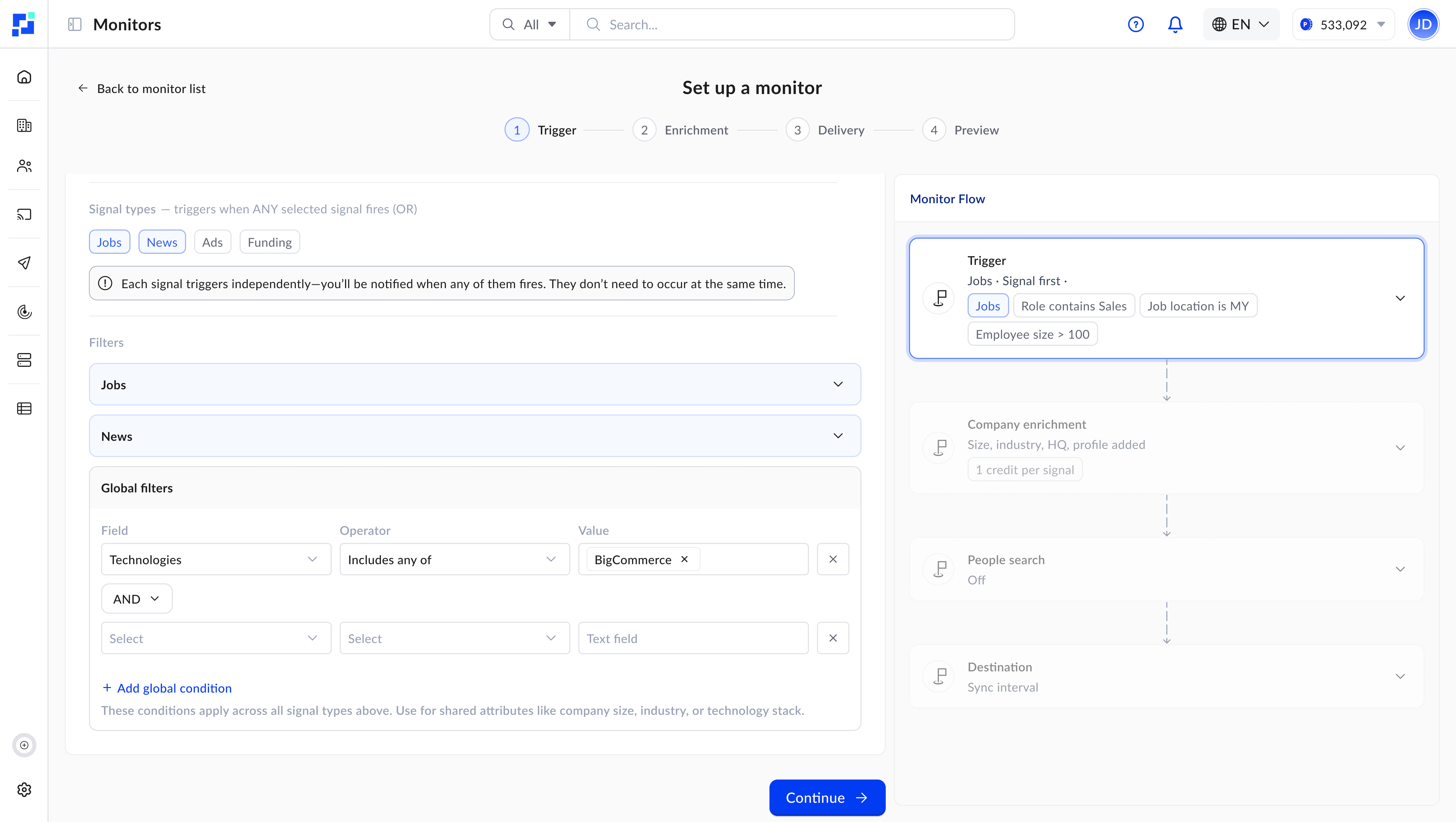
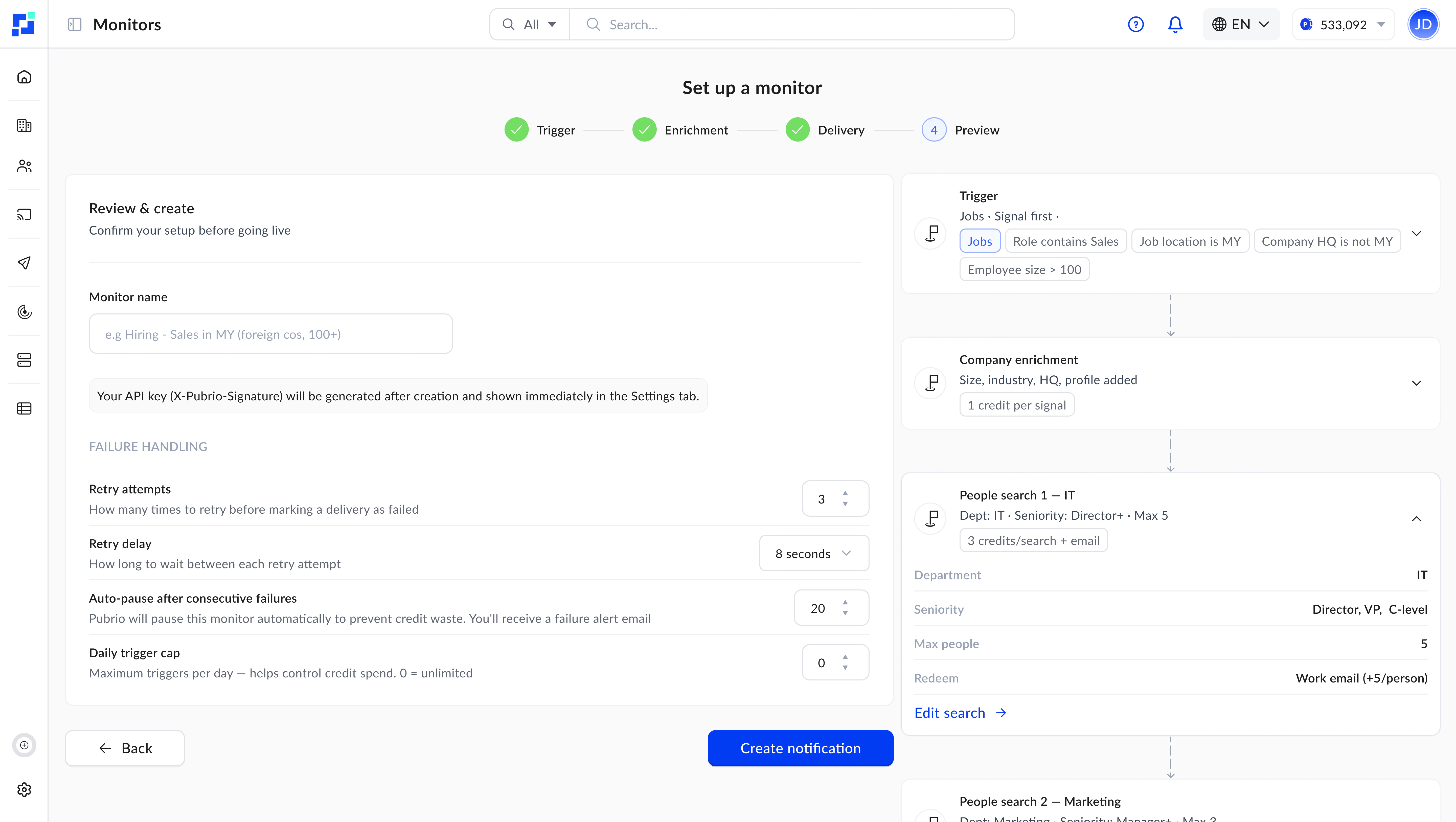
1
Define your filters
Choose which signals to track (jobs, news, advertisements, expansions) and set signal-level filters. Optionally layer on global company filters to narrow results — for example, only surface signals from companies with 500+ employees in the US.
2
Pubrio scans in real-time
With
frequency_minute set to 0 (the default), your monitor runs in real-time — detecting and delivering signals as they appear.3
Results are enriched automatically
Matching signals are enriched with full company profiles and, optionally, people contacts — all in a single trigger. No extra calls needed.
4
Delivered to your destination
Results arrive at your webhook endpoint or email inbox. You also get full statistics and log history through the dashboard endpoints.
Detection Modes
Every monitor operates in one of two detection modes:- Signal First
- Company First
Signals drive discovery. You define what signals to look for — the system finds matching signals across all companies, then enriches the results.Use global company filters (
company_filters) as a second layer to narrow which companies qualify. For example: “Find all AI job postings, but only from companies with 1,000+ employees.”Best for:- Broad market scanning and trend discovery
- Finding new companies you have never tracked before
- Signal-driven prospecting at scale
Signal Types
Monitors currently support four signal types, with more being added regularly:Jobs
New job postings — filter by title, location, posting date, and more.
News
Company news — launches, partnerships, funding rounds, leadership changes, and more.
Advertisements
Active ad campaigns — filter by target location, date range, and keywords.
Expansions
Market-expansion evidence — a company entering or growing in a new market, filtered by corridor, stage, and signal strength.
What Each Signal Tells You
Delivery Cadence
You control how frequently your monitor scans for new signals usingfrequency_minute:
The signal library is continuously expanding. New signal types are added as they become available — your existing monitors are not affected when new types launch.
Global Company Filters
One of the most powerful features of monitors is the ability to combine signal filters with global company filters. This means you can define criteria like:- “Companies with 500+ employees that are hiring for AI roles”
- “US-based SaaS companies that appeared in product launch news”
- “Companies using specific technologies that are running ad campaigns in Europe”
company_filters) accept the same parameters as the Company Search endpoint — locations, employee size, industries, technologies, verticals, and more.
In
company_first mode, use companies (domain_search_ids), domains, or linkedin_urls to specify your target company list — only one is required. company_filters adds additional filtering criteria in both modes.People Enrichment
When you enable people enrichment, each trigger automatically finds relevant contacts at the matched companies. Configurepeople_enrichment_configs with:
- Filters — management levels, departments, titles, locations — same parameters as the People Search endpoint
- Contact types —
email-work,email-personal,phone— refers to the Redeem endpoint contact types - Max people to return — 1 to 25 per config layer
Each enrichment layer consumes people search credits per trigger, regardless of how many people are returned. Plan your layers based on the distinct audiences you need.
Understanding Credits
Each monitor trigger consumes credits based on what it processes. Refer to the Pricing page for the latest credit rates.Example
A monitor configured withis_company_enrichment: true, one people enrichment layer with email redemption, and max_records_per_trigger: 5 triggers and finds 3 companies with 2 people each:
Destination Types
Webhook
Webhook
Receive results as a JSON payload at your HTTP endpoint. Include custom headers and body fields for authentication. Verify delivery authenticity using the monitor’s signature.This is the recommended destination for developers. See Setting up Webhooks for a complete walkthrough.
Email
Receive formatted results via email. Supports white-label branding for agencies and teams.Interested in white-label email delivery? Get in touch to learn more.
Sequences
Sequences
Auto-enroll matched contacts into an outreach sequence. Requires
sequence_identifier and record_type in destination_config.See the Create Monitor endpoint reference for configuration details.Configuration Reference
All configuration parameters have sensible defaults. In most cases, you only need to set the filters and destination — everything else is optional.Filter Reference
Signal and company filters reuse the same schemas as the search endpoints:Job Signal Filters
Same filters as Job Search — titles, locations, posting dates, and more.
News Signal Filters
Same filters as News Search — categories, galleries, keywords, and dates.
Advertisement Signal Filters
Same filters as Advertisements Search — target locations, date ranges, and keywords.
Global Company Filters
Same filters as Company Search — locations, size, industries, technologies, verticals, and more.
Expansion Signal Filters
Same filters as Expansion Search —
froms / tos, stages, scopes, momentum, freshness, and signal types.People enrichment filters (management levels, departments, titles) follow the same structure as the People Search endpoint.
Next Steps
Set Up Webhooks
Connect your systems to receive data in real-time.
Best Practices
Frequency, delivery reliability, and failure handling.
Example: Tracking Jobs
Complete company_first and signal_first walkthroughs with copyable code.
Create Monitor
Jump to the Create Monitor endpoint reference.